|
CDx3
Notification Service Website
- Preferred Stock ListTM
Preferred
stock information is
scattered all over the
Internet, making it very
difficult and enormously
time consuming for preferred
stock investors to see
comprehensive and current
information for specific
preferred stocks.
Preferred
Stock ListTM
is designed to
solve this problem for
subscribers to the CDx3
Notification Service.
Preferred
Stock ListTM
is a very powerful
browser-based software
application that gathers, sorts and
consolidates preferred stock
data from multiple sources
and presents it in a single
table. Preferred Stock ListTM
is a data
gathering tool that does the
work for you so that you can
focus on using the
information rather than
collecting it.

Preferred Stock ListTM Scope
Program
Overview
Loading
Preferred Stocks Into The
View Table
Sorting
Refreshing "Perishable" Data
In The View Table
Printing A Hardcopy
Securities To View: View Checked Rows Only
Securities To View: From Your Watchlist...
Securities To View: Enter Symbols To View...
Saving Preferred Stock Information To Your Computer
Save As: Symbol Watchlist...
Save As: Spreadsheet (.csv)...
Preferred Stock ListTM Disclaimer
There are
three types of preferred
stocks - traditional, trust
and 3rd-party trust. With
Preferred Stock ListTM
you can view
all preferred stocks or a
subset in a variety of ways
plus all Exchange Traded
Debt Securities (which are
very similar to preferred
stocks but are actually
bonds that trade on the
stock exchange).
You can then save the
results to your computer as
a watchlist of trading symbols that
you are interested in for
quick future access or
save the entire table in
spreadsheet format for
further analysis.
It is
important to note that
Preferred Stock ListTM
is not
intended to be a data
analysis tool. That is,
there is no intention to
re-invent Microsoft's Excel
or similar spreadsheet
programs. If you need to
look for trends, perform
multi-level sorting,
develop mathematical
correlations,
conduct statistical
analysis or process complex
calculations use Preferred
Stock ListTM
to gather your
preferred stock data for you
then use the Save As
Spreadsheet function to put
the resulting data into your
spreadsheet program for
analysis (don't have a
spreadsheet program?
Download OpenOffice
for PC or Mac for free).
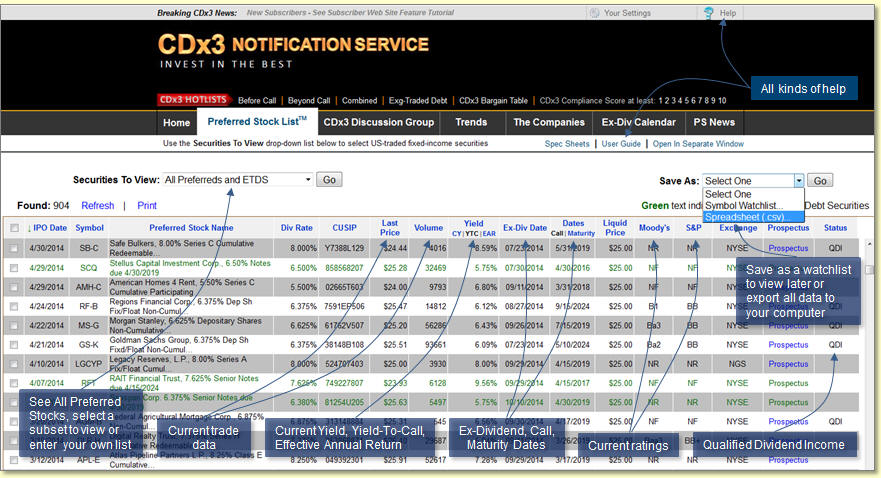
Clicking
on the Preferred Stock ListTM
main menu tab produces the
following screen:

The area
on the screen where
preferred stocks will be
displayed in table format is
referred to as the "View
Table." If you click on
one of the Hot List links, this
View Table will be
automatically populated
with the pre-selected data of your Hot
List.
Note the
two drop-down lists labeled
"Securities To View" and "Save
As" above the View Table.
The Securities To View
drop-down list allows you to
designate the type of preferred
stocks you would like to
see. The Save As drop-down
list allows you to save the
resulting information to your
computer.
These
two drop-down lists will be
discussed in detail below, but if
you are running Preferred
Stock ListTM
while you are
reading this, let's load
some preferred stock data
into the View Table right
now.
Preferred
Stock ListTM
allows you to
perform massive data
gathering of the 1,000 to
2,000 U.S.-traded preferred stocks
and Exchange Traded Debt
Securities or just
one preferred stock that you
are interest in or
everything in between.
Using
the Securities To View
drop-down list, you can see
that Preferred Stock ListTM
has a total of nine options
for loading securities
into the View Table.
The first
six (All Preferred Stocks,
Traditional Preferreds,
Trust Preferreds, 3rd-Party
Trust Preferreds, All
Exchange Traded Debt, All
Preferreds And ETDS) are
pre-defined while the last
three (View Checked Rows
Only, From Your Watchlist and
Enter Symbols To View) allow
you to control which
specific securities are
displayed.
To make a
selection from the
Securities To View drop-down list, just click on
your selection then click
the Go button. When the
data you have requested is
initially displayed in the
View Table it will be sorted
by IPO Date. Data loading times vary with
browser and connection
speed.
Let's
load some data into the View
Table.
Click the
small down-arrow to drop
down the list of Securities To View, click
Traditional Preferreds then
click
the Go button.
All
traditional preferred stocks
trading on U.S. stock
exchanges will load into the
View Table.
Your web
browser will display
indicators that Preferred
Stock ListTM
is loading data.
Depending on which web
browser you are using
(Internet Explorer, Firefox,
Safari, etc.), these
indicators are slightly
different. Most display a
message at the bottom of the
screen while data is being
loaded along with some type
of animated spinning
graphic. Clicking screen
objects during the data
download process will slow
(and perhaps even terminate)
the task, so please be
patient and wait until all
of the loading indicators
and messages that your browser presents
have disappeared.
Loading
the View Table with
Traditional Preferreds takes about
10 seconds before it is
completely finished.
Now that
we have some data in the
View Table, let's review a
few of the program's
features. After that we'll
go over how to save data
from the View Table onto
your computer.

Once you
select the preferred stocks
that you would like to see
by making a selection from
the Securities To View
drop-down list, Preferred
Stock ListTM
will tour the
Internet and gather a
variety of information for
each preferred stock and
present it in the View
Table.
Note that
the column headings in the
View Table are blue. That
means that you can click
them to control how the View
Table is sorted.
When the
preferred stocks that you
request first appear in
the View Table they will be
sorted by IPO Date (most
recently introduced issues
will be listed first).
Clicking any column heading
will sort the View Table in
ascending order (smallest
value first) by the column
you clicked. Clicking the
column heading again will
re-sort the View Table again
but in descending order.
Remember
that Preferred Stock ListTM
is
a data gathering tool rather
than a data analysis tool.
To perform more complex
sorting you should save the
data as a spreadsheet and
use a spreadsheet program
(such as Microsoft Excel,
OpenOffice or
similar). We'll review how
to save the View Table as a
spreadsheet onto your
computer in a moment.
Just
above the column headings on
the left side of the screen
you will see a clickable
feature that refreshes the
data in the View Table.
Some of
the data presented in the
View Table is "perishable,"
meaning that it can become
out-of-date very quickly.
For example, the Last Price
column is the market price of the
last trade that took place
on the stock exchange for
each preferred stock. The
Volume value is also very
perishable since it shows
you how many shares have
traded so far today. Such
perishable values change
continually throughout the
day so refreshing the data
is important (note that this
data is delayed about 20
minutes; confirm all data
before considering
investing).
To
refresh the data in the View
Table click Refresh.
Whenever
Refresh is
clicked, Preferred Stock ListTM
returns to the Internet
and updates the information
associated with the
currently displayed list of
preferred stocks in the View
Table.
Just
above the column headings on
the left side of the screen
you will see a clickable
feature that allows you to
produce a printed copy of
the data in the View Table.
Clicking
on Print opens a new window
on your screen with the View
Table data presented in a
single table. In the upper-left
corner of this new window is
a Print button that allows
you to print the table on
your printer.
The View
Checked Rows Only option works in combination with
the checkboxes that you see
at the front of each
preferred stock row in the
View Table.
Using
this option is a two-step
process.
First,
select the individual
preferred stocks that you
are interested in by
clicking on the checkbox in
front of each row.
Once you
have checked the preferred
stocks of interest, select the View Checked Rows
Only option and click the Go
button.
After
confirming that you want to
view just the checked rows,
the View Table
will refresh and present
just the preferred stocks
that you selected with the
checkboxes.
Before
proceeding with an example
of how to use checkboxes,
load the View Table with
"All Preferreds and ETDS"
(select it from the
drop-down list and click the
Go button).

With All
Preferreds and ETDS loaded
into the View Table, let's
look at an example of using
checkboxes.
Let's say you are
interested in securities issued by
SLM Corporation. To group
them together, sort the View
Table by the Preferred Stock
Name column (click the
column heading), then click
the checkboxes next to each
SLM security as seen here.
Notice in
this example that some of
the rows are black and some
are green. Preferred Stock ListTM
uses black for preferred
stocks and green for
Exchange Traded Debt
Securities. SLM Corporation
has issued both types of
these fixed-income
securities.
With the
checkboxes of the rows that you are
interested in checked,
selecting the View Checked
Rows Only option in the
Securities To View
drop-down list refreshes the
View Table with just the
securities that you have checked.
Before we
leave our discussion of
using the checkboxes, notice
the checkbox in the
upper-left corner next
to the IPO Date column
heading.
This
"master checkbox" allows you
to check or uncheck all rows
in the View Table at once.
This feature can be
particularly handy when you
want to check all rows
except just a few.
By
clicking the master
checkbox, all rows in the
View Table will become
checked. You can then
uncheck the specific rows
you want to remove.
Clicking
the master checkbox a second
time unchecks all rows.
The
From Your Watchlist option
tells Preferred Stock ListTM
that you want it to gather
current data for a specific
list of trading symbols that you had
previously saved onto your
computer (more on how to
save a Symbol Watchlist of trading
symbols onto your computer in a moment).
This
option is very helpful when
you want to keep an eye on a
specific list of preferred
stocks over time, such as a
preferred stock portfolio.
Even if
your list includes CDx3
Preferred Stocks, non-CDx3 issues
and ETDS's, you can
create a Symbol Watchlist of
their trading symbols (more
on how to create a new
Symbol Watchlist in a
moment) and load them into
the View Table at any time.
When you select the From
Your Watchlist
option and click the Go
button, a window will open
on your screen that allows
you to designate the file on
your computer where you
previously saved your Symbol
Watchlist (you can create
any number of Symbol
Watchlists as
long as you give them unique
names on your computer; more
on
creating Symbol
Watchlists in a moment).

Note that
the appearance of this
window may be slightly
different depending on the
web browser program you are
using (Internet Explorer,
Apple Safari, Firefox,
etc.).
Use this
window to browse your
computer's hard disk and
locate the Symbol Watchlist
file that you had previously
saved (using the
Save As /
Symbol Watchlist option
discussed below).
A Symbol
Watchlist file contains a
list of preferred stock
trading symbols, separated
by commas.
Once you
have selected the Symbol
Watchlist that you want to
view click the View List button.
After Preferred Stock ListTM
retrieves the data (this
may take several seconds)
your screen will be updated
with the preferred stocks
designated by the trading
symbols within your Symbol
Watchlist file.
Another
way of loading the View
Table with the data for
specific preferred stocks is
to provide Preferred Stock ListTM
with a list of trading
symbols by simply typing
them in.
When
you select the Enter Symbols
To View
option and click the Go
button, a window will open
on your screen where you are
able to enter a list of trading symbols from
your keyboard, separated by
commas.

You can
enter as many symbols as you
would like but remember that
the more you enter the
longer it will take
Preferred Stock ListTM
to
gather all of the
information. Trading symbols can be
entered either in UPPERCASE
or lowercase letters and can
be for either preferred
stock, ETDS's or both.
In this
example, the View Table will
be loaded with the
information for four
preferred stocks - PSA-O, BDN-C, SOV-C
and JPM-C.
Once you
have typed your symbol
list, click the Submit button.
After Preferred Stock ListTM
retrieves the data (this
may take several seconds)
your screen will be updated
with the data for the
securities designated by the trading
symbols that you typed.
Invalid
trading symbols will be
ignored.
Once you
have the preferred stocks
that you are interested in
showing in the View Table
you may want to either (a)
save their trading symbols
as a Symbol Watchlist for
later retrieval or (b)
save all of the data
displayed in the entire View
Table to a spreadsheet for
further analysis on your
computer.

To
see these two options in the
Save As drop-down list click
on the small down arrow.
A word of
caution here: All web
browser perform the task of
downloading and saving a
file to your computer differently. In
fact, depending on how you
have your security settings
configured this function may
not work at all. Your web
browser's security settings
need to be set such that
downloading a file to your
computer's hard disk is
allowed.
Some
versions of Mac browsers can
be particularly picky about
this and may disallow saving a
file to your computer as the
default security setting
when the browser was
installed onto your
computer.
Before
you attempt to save a
watchlist file to your
computer, be sure that your
browser's preferences
and/or security settings do not block
downloading files. Your
browser (such as Safari for
Mac) may not distinguish
between cookies and any
other type of downloaded
file so set your browser
to never block
cookies.
Also,
some browsers (Safari for
Mac again) preset the name
of the folder on your
computer that downloaded
files will be saved into
(such as "Download" or
"Downloads"). If your browser
is set to save downloaded
files into a specific
folder, be sure that you
know what that folder name
is so that you can find your
downloaded watchlist file
later (Safari users should
look under
Preferences/General).
Let's go
over these two options for
saving data to your computer.
It is
important to understand the
difference between saving a
Symbol Watchlist versus
saving a Spreadsheet.
When
you use the Save As / Symbol
Watchlist option Preferred
Stock ListTM
saves the trading
symbols - ONLY - to your
computer's hard disk in a
folder and Symbol Watchlist file
name that you specify.
A Symbol
Watchlist is a list of
preferred stock trading
symbols and does not
include their data. If you
want to save the data
associated with the trading
symbols as well, use the
Save As
/ Spreadsheet option
(discussed next).
The Save
As / Symbol Watchlist option
is great if you have lists
of preferred stocks that you
frequently want to watch.
You can create and save as many Symbol
Watchlists as you'd like,
just be sure to give them
unique and meaningful names
on your computer so that you
can tell them apart when
reloading them later (see
the
Securities To View / Symbol Watchlist
discussion above).
When you
select the Save As / Symbol Watchlist
option and click the Go
button, a window will open
asking you to confirm the
action you want to take.
The
appearance of this window
will be different depending
on which web browser program
you are using and how you
have some of your browser
settings configured.
The
example at left is from
Safari for Mac (once Safari
was configured to never
block cookies using the
Preferences/Privacy/Block
Cookies menu).
This
example is from Mozilla
Firefox. For Firefox users,
note the choices you are
given under the "What should
Firefox do with this file?"
question.
Internet
Explorer and other browsers
produce a similar Open or
Save file confirmation
screen.
Click
Save File then the OK
button.
The Save
As window will then appear, asking you to designate
where, on your computer, you
would like to save this
Symbol Watchlist and under
what file name.

Remember where
you save it since you will
need this information again
when you want to reload
these preferred stocks in
the future.
By
default, the file name is
set to watchlist. While the
file name can be changed to
anything, do not change the
file type.
The file
type is set to use the comma
separated values format
which is the format required
for Symbol Watchlist files.
Changing the file type will
prohibit your Symbol
Watchlist file from being
able to be used by the
Securities To View / Symbol Watchlist option discussed
earlier.
Once
downloaded onto your
computer you can edit your
watchlist symbols using any
text editing program such as
NotePad, which has come
pre-installed on every
Windows PC for over 20 years
(Mac
version for free here),
or spreadsheet program such
as Excel or OpenOffice (free
download for PC
and Mac).
The above
example illustrates adding
the symbol for PSA-M from
Public Storage to my
watchlist file using the
NotePad text editor.
This
option allows you to save
the data currently being
displayed in the View Table to your
computer for
further analysis.
When you
select this option you will be
asked to designate the
folder and file name under
which Preferred Stock ListTM
is to save this data.
The
resulting file is in a
special "comma separated
values" (csv) format that can then
be opened by common computer
spreadsheet software
programs such as Microsoft
Excel or OpenOffice (free
download for PC
and Mac).
The data
displayed by Preferred Stock
ListTM
is provided by suppliers who
do not warrant the data's
completeness, timeliness or
accuracy. Therefore, no such
warranty is offered to you
with respect to your use of
Preferred Stock ListTM
or the data it presents.
Confirm all information
presented by Preferred Stock
ListTM
prior to making investing
decisions.
Subscribers are invited to
donate to Preferred Stock ListTM
data providers.
|